Tile windows on your Mac in one click
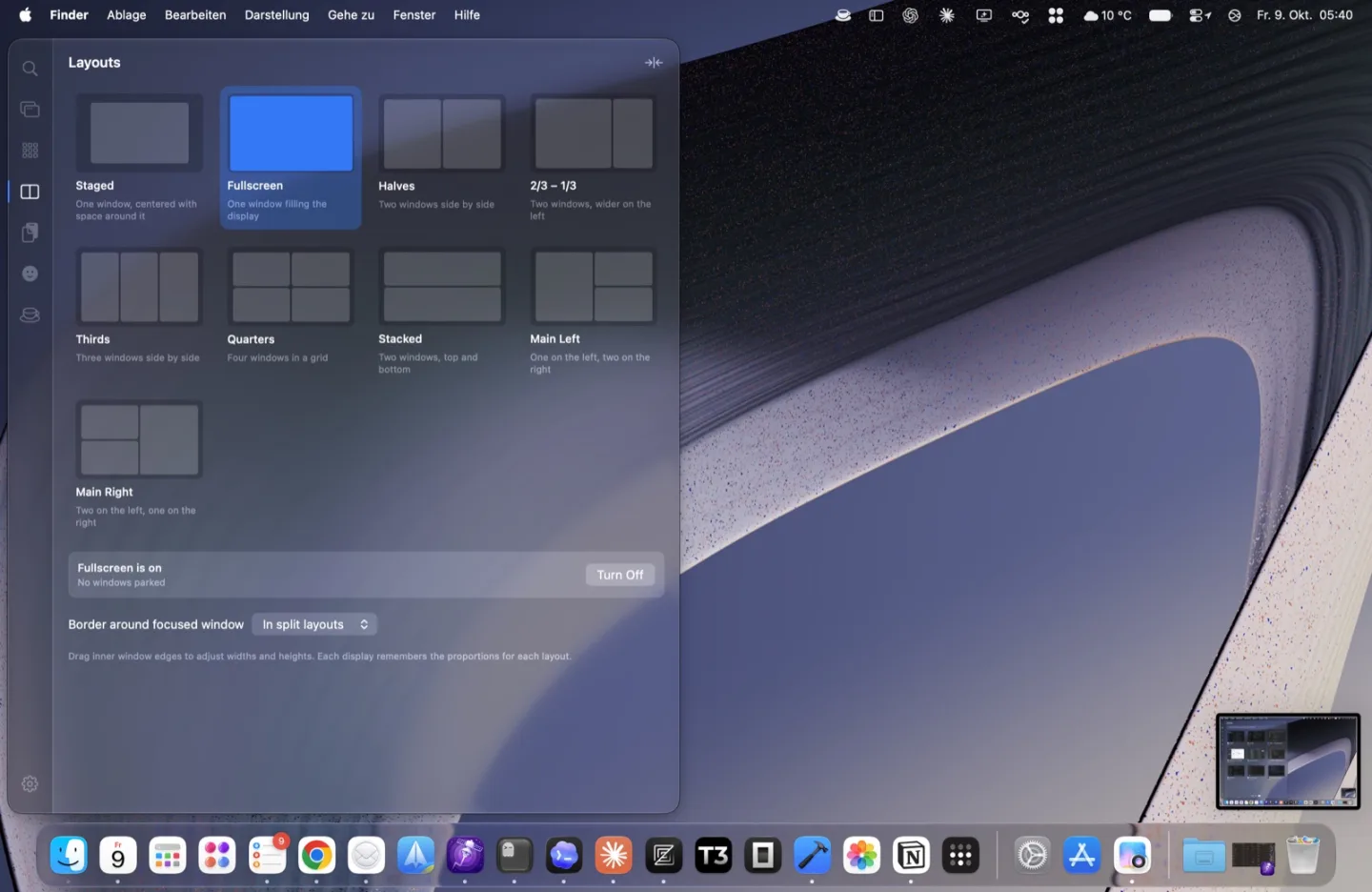
Rest the mouse at the screen edge, click a layout, and the windows on that display move into its slots. No keys to learn and no config file. Wimi then keeps the layout filled as you work.
Halves, Staged and Fullscreen free · more layouts in Pro
The layouts
- Free: Halves, Staged (one centered window) and Fullscreen.
- Pro: Thirds, Quarters, 2/3 – 1/3, Stacked (top and bottom), Main Left and Main Right (one tall window beside two stacked ones), and sizing the Staged window.
Each display has its own layout. Gaps between windows are none, 6, 12 or 20 points.
What happens to your other windows
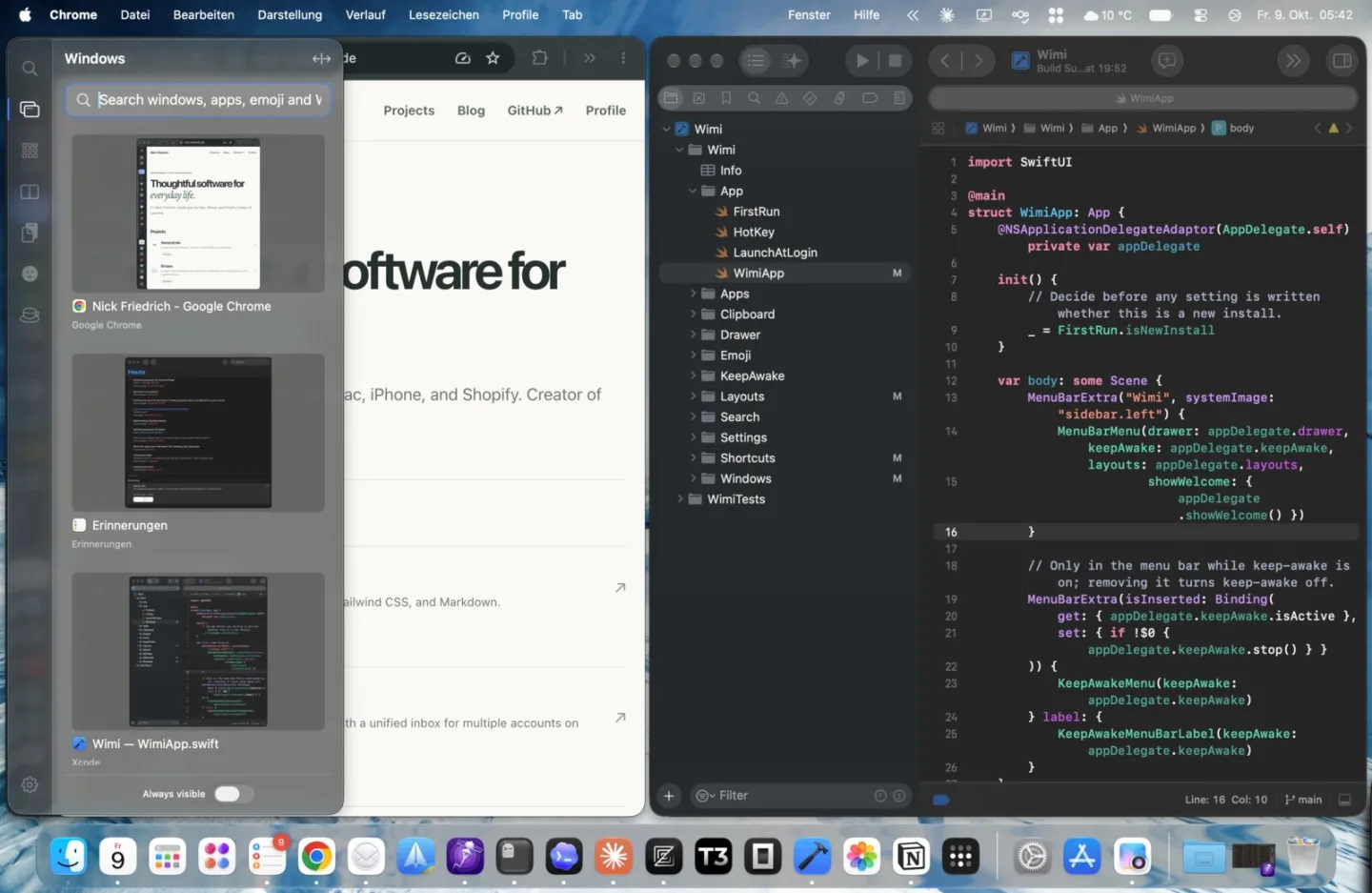
A layout has a fixed number of slots, one window each. Every other window on that display is parked: still open, tucked into a corner of the screen so there’s no pile of windows behind the layout.
- A new window takes the slot you’re working in, at that slot’s size. Slots never get split smaller.
- Choose a parked window with ⌘Tab, ⌥Tab, the drawer or search, and it comes into your slot. The window that was there is parked.
- Close a window and its slot is refilled with the most recently parked one.
- Turn the layout off or quit Wimi and every parked window comes back on screen.
Adjust it with the mouse
- Drag the edge between two windows and both resize together. Choose the active layout again, or press Hyper 0, to reset the sizes.
- Drag a window onto another slot to swap the two, or drag one from the drawer onto the slot you want.
- Pop a window out to let it float above the layout until you put it back. Dialogs float by themselves.
Or with the keyboard
Shortcuts are optional. With the Hyper key: Hyper + arrows move focus between windows, Hyper ⇧ + arrows swap them, Hyper R rotates windows through the slots, Hyper J switches to the next layout and Hyper F floats a window or puts it back. Every shortcut can be changed or turned off.
Good to know
- Some apps can’t get as small as a slot. They overlap the window next to them instead of pushing it away, and Wimi shows which app needs more room.
- With many parked windows, turn on “Group windows by application” in Desktop & Dock settings so Mission Control shows them at a useful size. Details.
- Wimi needs the Accessibility permission to move windows.
Comparing tools? See Wimi vs Rectangle, Wimi vs Magnet and Wimi vs AeroSpace.
Try it on your own windows
Wimi is free to use, and every download includes 30 days of Pro, with no account or card. See what’s Free and what’s Pro.
On your phone? Try Wimi when you’re back at your Mac.
Email opens your mail app with the link filled in; you choose where to send it. We don’t collect your address.